Remote iPhone Management: MDM, Screen Sharing or Control?
Remote iPhone management means three different jobs: MDM for policies, screen sharing for support, and hands-on remote control for testing. Pick by the job.
Key takeaways
- Remote iPhone management covers three different jobs: MDM configures and secures devices, remote support tools share a screen, and remote-control panels let you tap and type on real iPhones.
- MDM sends configurations, apps and commands such as lock and erase, but it does not show or control the iPhone's screen.
- Since April 2026, Apple Business replaces Apple Business Manager; it is free, includes built-in device management and can link a third-party device management service.
- On iOS, remote support apps such as TeamViewer can show the screen through a broadcast the user starts, but TeamViewer states that iOS does not allow remote control.
- Hands-on control of real iPhones runs through Apple's XCTest via WebDriverAgent, which needs developer setup on devices you own or are authorised to manage.
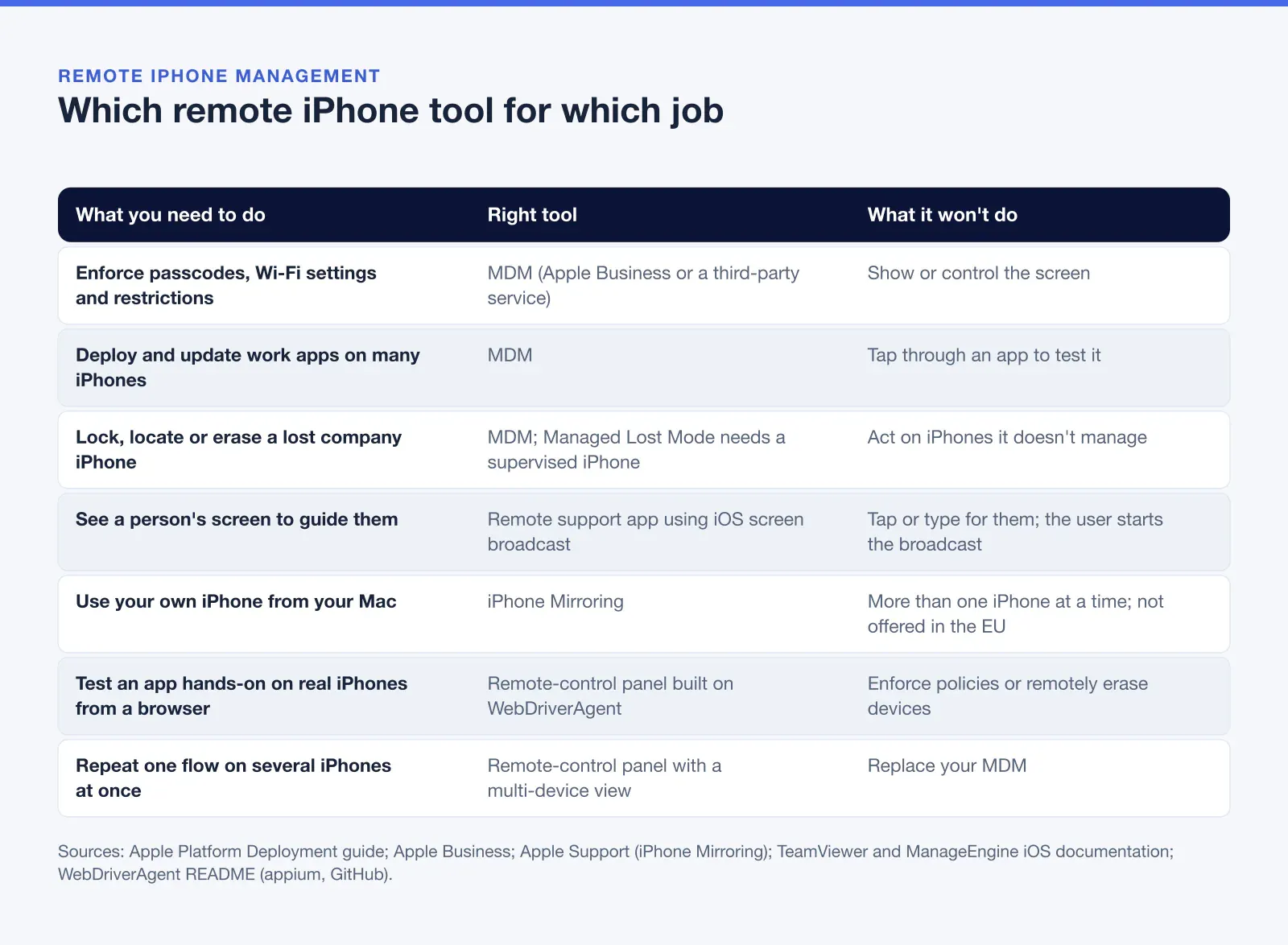
Remote iPhone management means one of three different jobs, and each one needs a different tool. To set policies, deploy apps, and lock or erase company iPhones, you need mobile device management (MDM). To see a person’s screen and walk them through a problem, you need a remote support tool that uses iOS screen broadcasting. To tap, swipe and type on real iPhones from a computer, for app testing or device operations, you need a remote-control panel built on Apple’s XCTest through WebDriverAgent. This guide explains what each one can and can’t do, where Apple’s own iPhone Mirroring fits, and how to choose.
One related topic is out of scope here: parental controls for a child’s iPhone. Apple handles those with Screen Time and Family Sharing, described in Set up parental controls.
What is remote iPhone management?
Remote iPhone management is configuring, supporting or operating iPhones without holding them, using Apple’s device management framework, screen sharing, or developer automation tools.
The three approaches are often sold under similar names, which is why searches for “remote phone management” return such different products. The difference is what reaches the device. An MDM sends settings and commands. A screen-sharing tool sends a video of the screen out of the device. A remote-control panel sends input into the device: taps, swipes and text.
Job 1: MDM configures and secures iPhones
Apple’s Platform Deployment guide describes a device management service as a way for IT to configure devices remotely by sending configurations, profiles and commands. In practice an MDM can:
- Apply settings: Wi-Fi, VPN, email accounts, passcode rules and restrictions.
- Distribute and configure apps bought through Apple School Manager or Apple Business.
- Query the device for information such as its name and battery level, and check compliance with your policies.
- Update software and remotely lock or wipe a device.
Unless enrollment is automated, users decide whether to enroll a device and can unenroll at any time, which removes the configurations and managed apps that came with it.
Apple Business replaces Apple Business Manager
If you knew Apple Business Manager, the name has changed. Apple announced that from April 14, 2026, Apple Business replaces Apple Business Manager, Apple Business Essentials and Apple Business Connect. It is a free service in the U.S. and more than 200 countries and regions, and it includes built-in MDM. According to the Apple Business guide, you can enroll devices in the built-in service or link an external device management service, so an existing third-party MDM still has a place.
Supervised vs unsupervised iPhones
Supervision decides how much control the organisation has. Apple’s supervision page says a supervised device is owned by the organisation, which gets additional control over its configuration and restrictions. iPhones on iOS 13 or later are supervised automatically when they enroll through Automated Device Enrollment. You can also supervise an iPhone manually with Apple Configurator for Mac, but only with the device in your hands, and the process erases it.
Supervision matters for lost devices. Apple’s lock and locate page explains that an MDM can put a supervised iPhone in Managed Lost Mode: the current user is locked out, the Lock Screen shows a message the administrator writes, the administrator can request the device’s location and play a sound, and only the administrator can turn the mode off.
What MDM doesn’t do
MDM does not show or control the screen. Apple’s comparison of enrollment methods also lists what the organisation can’t do under any method, including viewing personal mail, contacts, calendars, messages and Safari history. With User Enrollment, used for personal devices, the organisation can’t erase the whole device or list all its apps; it can only remove the managed data. MDM is a policy tool, not a window into a phone.
Job 2: Remote support and screen sharing
When a colleague says “I can’t find that setting”, you want to see their screen. On iOS, remote support tools do this with Apple’s ReplayKit, the framework for recording or streaming the screen. The user starts a broadcast on the iPhone and the supporter watches it live.
The limit is control. TeamViewer’s guide to sharing the screen of an iPhone or iPad states that iOS does not allow remote control of iOS devices; the supporter sees the screen live. Some MDM products bundle the same capability. ManageEngine’s remote troubleshooting documentation says only remote view is supported on iOS, the user must start the broadcast from its app, and the session ends if the user doesn’t accept the request within an hour.
That makes screen sharing the right tool when a person is holding the iPhone and needs guidance. It is the wrong tool when nobody is at the device, when you need to tap for the user, or when the goal is testing an app.
iPhone Mirroring: one personal iPhone from a Mac
Apple’s own option is built for one person and one phone. iPhone Mirroring lets you use your iPhone from your Mac while the phone itself stays locked. Apple lists these requirements:
- macOS Sequoia 15 or later, on a Mac with Apple silicon or the Apple T2 Security Chip.
- iOS 18 or later, with a passcode set on the iPhone.
- Both devices signed in to the same Apple Account with two-factor authentication, with Bluetooth and Wi-Fi on.
- The iPhone locked and near the Mac; the Mac not sharing its internet connection or using AirPlay or Sidecar.
It works with one Mac and one iPhone at a time, and Apple says it is currently unavailable in the European Union. It is ideal for your own phone at your desk, but it doesn’t help a team, a phone in another office, or several devices.
Job 3: Hands-on remote control of real iPhones
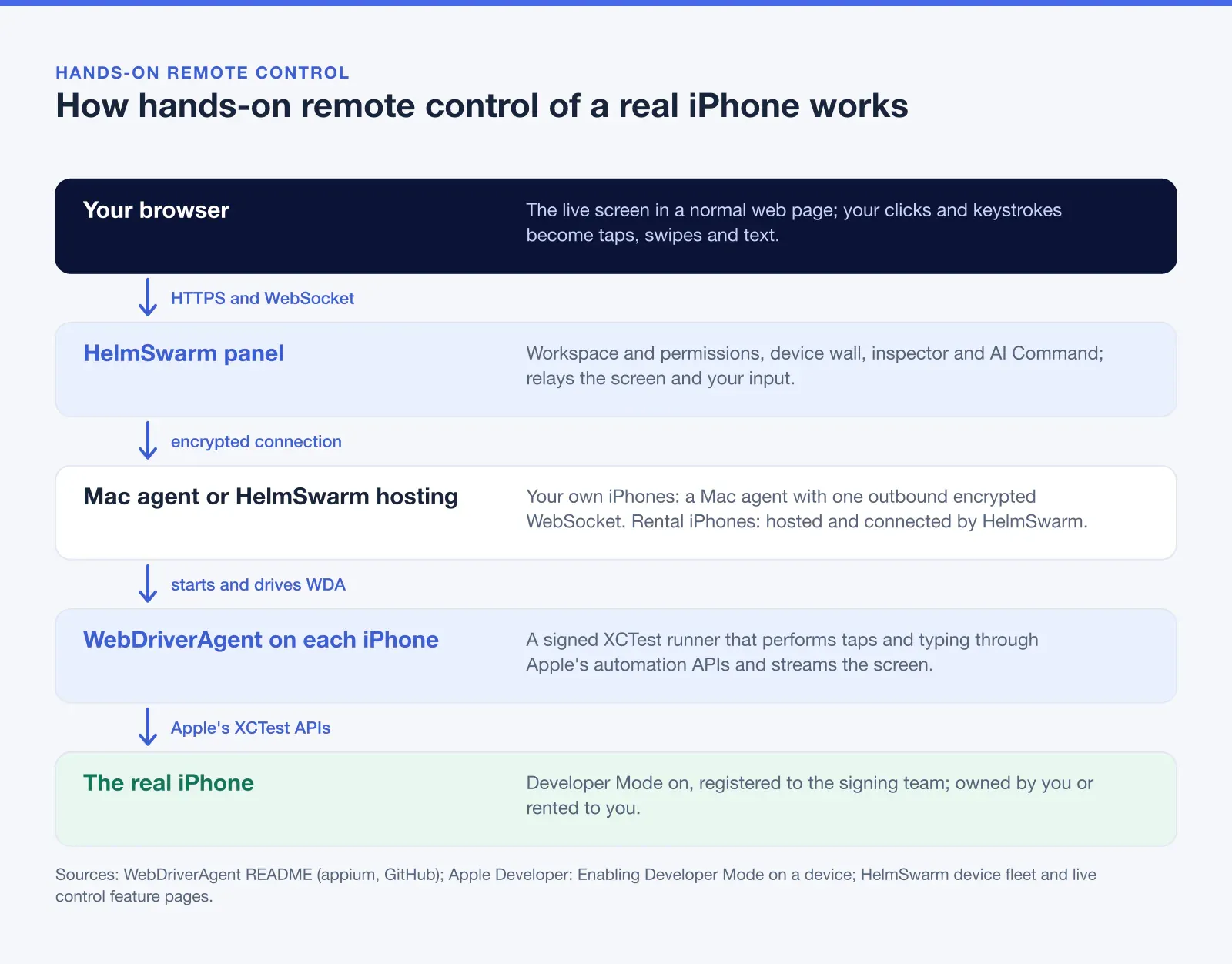
App teams and device operators need more than a view. They need to install a build, tap through a flow, type into fields, read the accessibility tree and repeat the same steps on several iPhones. On iOS that runs through Apple’s XCTest framework, and the common open-source way to expose it is WebDriverAgent.
The WebDriverAgent README describes it as a WebDriver server for iOS that can remote-control iOS devices. It links XCTest.framework, calls Apple’s APIs to run commands on the device, and can launch and stop apps, tap, scroll and check what is on screen. The appium project maintains it; the code moved from the archived appium/WebDriverAgent repository into the appium-ios monorepo.
WebDriverAgent is developer tooling, so it needs setup on the device:
- A signing team that includes the device. WDA is a signed test runner, and it installs only on iPhones registered to the team that signs it.
- Developer Mode on iOS 16 and later, as Apple explains in Enabling Developer Mode on a device.
- Enable UI Automation in the iPhone’s Developer settings, which the Appium device setup guide requires on real devices.
- A host that starts WDA and forwards its screen and commands: a Mac next to the phones, or a hosted service.
Those steps assume physical access and developer control. This is a tool for test and operations devices you own or are authorised to manage, not for someone else’s phone.
Remote iPhone management: MDM vs remote control
The short version of iPhone MDM vs remote control: MDM decides what a device is allowed to do, while remote control does things on the device. They don’t compete, and many organisations need both. Corporate iPhones live in the MDM. Dedicated test iPhones live in a remote-control panel, and they can also be enrolled in the MDM if your policies require it. In that case, check that the policies don’t block what the test setup needs, such as the developer settings above and installs of your own builds.
To pick the tool, answer four questions:
- Who owns the iPhone? Company-owned devices belong in MDM with Automated Device Enrollment. Personal devices fit User Enrollment. Test devices need a developer signing team.
- Do you need to change settings or act on the screen? Settings and apps point to MDM. Taps, swipes and typing point to remote control.
- Is someone holding the iPhone? Screen sharing needs a person to start and accept the broadcast. Remote control works on unattended test devices.
- How many devices, and how often? iPhone Mirroring handles one personal phone. A panel with a device wall and multi-device view handles many.
Before you manage iPhones remotely
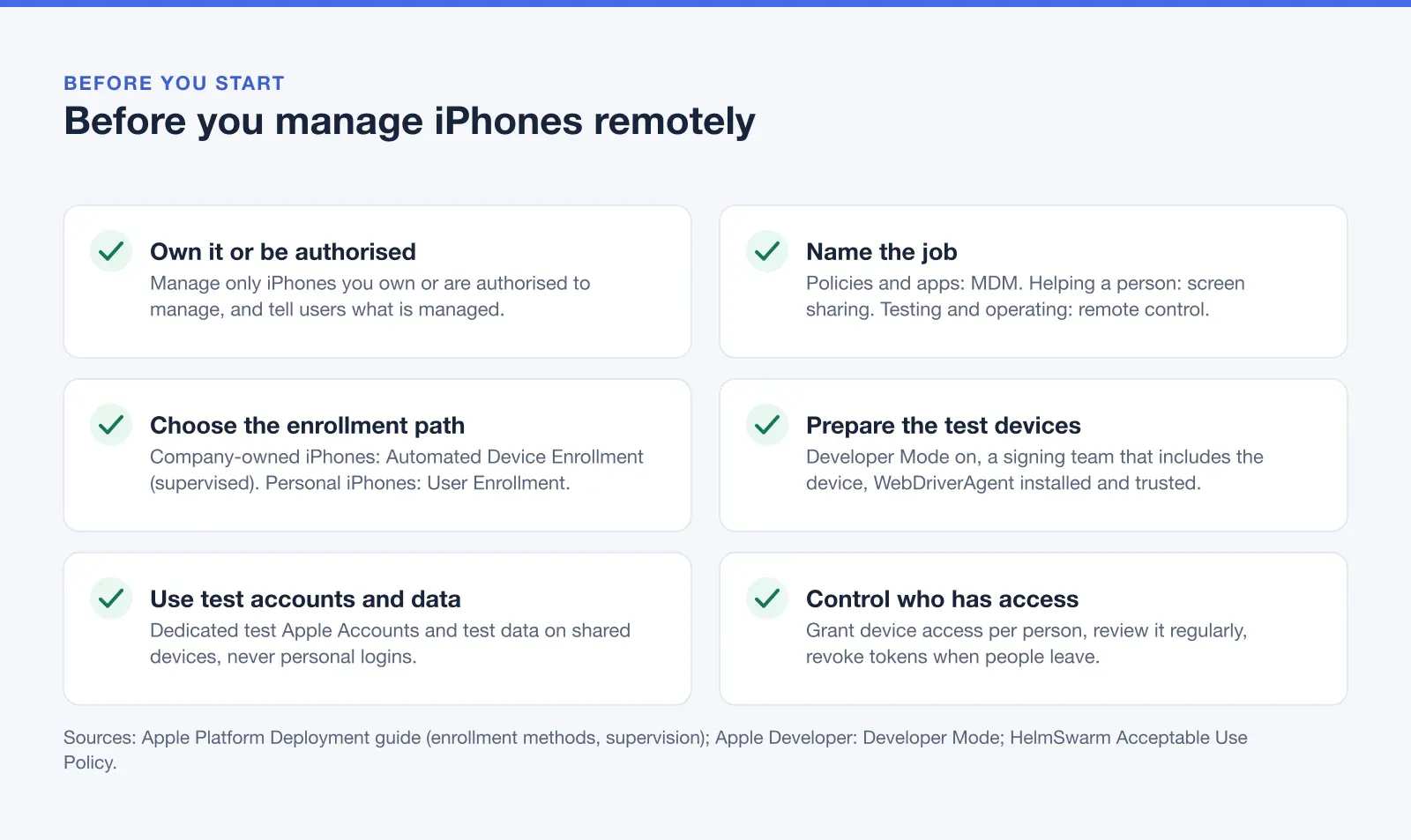
Whatever you choose, the same ground rules apply. Manage only iPhones you own or are authorised to manage, and tell the people who use them what is managed. HelmSwarm’s Acceptable Use Policy sets the same rule for devices in our panel.
Hands-on remote control with HelmSwarm
HelmSwarm is a web panel to control, mirror and automate real iPhones, built on WebDriverAgent. It covers Job 3. You bring devices in one of two ways:
- Your own iPhones connect through the HelmSwarm Mac agent. It starts WebDriverAgent on each device and opens one outbound encrypted WebSocket with a revocable connect token, so you don’t open inbound ports or set up a VPN. Older iPhones work too, tested end-to-end on iOS 16.7. How it works.
- Rental iPhones are physical iPhones assigned to you and hosted by HelmSwarm, with power and 1 Gbit/s internet. Nothing to install on your side. Rent iPhones.
In the panel, the device wall shows each iPhone with its live screen or latest snapshot, tags, filters and health warnings for WebDriverAgent, iOS and provisioning. Live device control gives you tap, swipe, pinch, typing, hardware buttons, apps, URLs, screenshots and MP4 recordings in the browser. The multi-device view puts several iPhones side by side and can mirror one tap or swipe to all of them. The inspector shows the accessibility tree, crash logs and syslog, and AI Command turns a plain-English instruction into steps, asking for confirmation before anything risky runs.
HelmSwarm is not an MDM. It does not enforce policies, push configuration profiles, or remotely lock or erase devices. Keep your MDM for that job and use HelmSwarm next to it for hands-on work. HelmSwarm pricing is per device per month: $15 for Your Own Device and $49 for a Rental iPhone in the first month (1–4 devices). Compare plans.
Sources
- Apple Platform Deployment: Intro to device management
- Apple Platform Deployment: About Apple device supervision
- Apple Platform Deployment: Lock and locate Apple devices
- Apple Platform Deployment: Enrollment methods for Apple devices
- Apple Newsroom: Introducing Apple Business
- Apple Business guide: Intro to Apple Business
- Apple Support: iPhone Mirroring
- Apple Support: Set up parental controls
- Apple Developer: ReplayKit
- Apple Developer: Enabling Developer Mode on a device
- WebDriverAgent in the appium-ios monorepo (GitHub)
- Appium XCUITest driver: device setup
- TeamViewer: Share the screen on your iPad/iPhone
- ManageEngine MDM: Remote troubleshoot (iOS)
Frequently asked questions
Can I control an iPhone remotely from my computer?
Yes, in two ways. iPhone Mirroring lets you use your own iPhone from a nearby Mac, one iPhone at a time. For prepared test devices, a remote-control panel built on WebDriverAgent sends taps, swipes and text from a browser. Typical remote support apps only show the iPhone's screen.
Can MDM see or control an iPhone's screen?
No. MDM configures settings, installs apps, queries device information and can lock or erase a device. Apple's enrollment comparison also lists viewing personal mail, messages and Safari history as not allowed. Some MDM products add a remote view app, which the user has to start.
What is the difference between a supervised and an unsupervised iPhone?
A supervised iPhone is owned by the organisation, which gets more control over its configuration and restrictions. iPhones on iOS 13 or later become supervised through Automated Device Enrollment, or manually with Apple Configurator, which erases the device. Managed Lost Mode needs supervision.
Is Apple Business Manager still available?
Apple announced that Apple Business replaces Apple Business Manager, Apple Business Essentials and Apple Business Connect from April 14, 2026. Apple Business is free in 200+ countries and regions, includes built-in device management and can link to a third-party device management service.
Does iPhone Mirroring work in the EU?
No. Apple says iPhone Mirroring is currently unavailable in the European Union. Elsewhere it needs macOS Sequoia 15 or later on a Mac with Apple silicon or a T2 chip, iOS 18 or later, the same Apple Account on both devices, and the iPhone locked and nearby.
Is HelmSwarm an MDM?
No. HelmSwarm is a web panel for hands-on control, mirroring and automation of real iPhones you own or rent. It doesn't enforce policies, push configuration profiles or remotely erase devices, so teams use it next to their MDM rather than instead of it.